

Ask your AI about your whole roster.
Connect Claude, ChatGPT or Cursor to Plan My Peak and ask about your athletes in plain language. Your assistant reads compliance, training load and ride detail live, so you get the full picture without clicking through screens.
- Included on every plan
- Read-only
- Only your athletes
- Disconnect any time
You ask: Give me last week’s roster overview, least compliant first.
Reading your roster from Plan My Peak
Your assistant answers: Here is last week, least compliant first:
- Sam K.62%2 missed rides, form -18260 of 420 TSS
- Maria F.78%1 missed ride, form -6351 of 450 TSS
- Alex M.96%No missed rides, form +4480 of 500 TSS
Sam is the one to check on first: two missed rides and the lowest form on your roster.
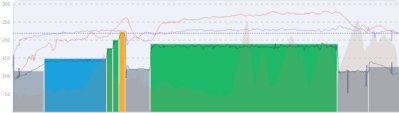
Example conversations. The ride chart is real; names and other figures are sample data.
What is the Plan My Peak MCP?
What it isMCP (Model Context Protocol) is an open standard that lets an AI assistant connect to the tools you already use. The Plan My Peak MCP server is that connection for your coaching data.
Add it to your assistant once and sign in with your coach account. From then on, your assistant can look up your athletes, their workouts and their compliance whenever you ask a question.
Ask in plain language
Use athlete names and dates the way you would with an assistant coach. No exports, no copy and paste.
Answers from live data
Your assistant reads Plan My Peak when you ask, so every answer reflects the latest workouts as they sync in.
Read-only by design
It can look things up, summarise and draft. It can never change a plan, publish feedback or message an athlete.
What you can ask about.
What you can do with itYour roster at a glance
One week for every athlete in a single answer: planned vs. actual TSS, compliance, missed rides, fitness, fatigue and form, sorted the way you ask.
Try asking“Give me last week's roster overview, least compliant first, with the chart.”
Weekly compliance
Planned vs. completed load and compliance over recent weeks, for any athlete you coach.
Try asking“Give me a compliance summary for Alex over the last 4 weeks and flag any week under 80%.”
Any ride in detail
The full picture of one workout: planned vs. actual, power, heart rate and the analysis.
Try asking“Show me the details of Sam's ride yesterday and how it compared to the plan.”
Rides as charts
Power and heart rate over time with the planned workout drawn behind it. Cadence, elevation and temperature on request.
Try asking“Show me Sam's ride from Saturday as a chart, with cadence.”
Similar rides
The athlete's own earlier rides that match this one: the same planned workout first, then rides of the same kind with a similar duration and load.
Try asking“Has Alex done this workout before? Compare today's ride with the earlier ones.”
Plans and workouts
What is scheduled and what was completed for any athlete, over any date range.
Try asking“What's on Maria's plan for the next 7 days?”
Your assistant can also draft for you. Ask it to list everyone who is behind on compliance and write a short check-in for each of them. You decide what gets sent.
Connected in three steps.
Steps to connectAdd the connector
In your assistant's settings, add a custom connector (also called an MCP server) and paste the Plan My Peak address.
Sign in and approve
Sign in with your Plan My Peak coach account and approve read-only access. There are no passwords, tokens or API keys to copy.
Ask your first question
Use athlete names and dates naturally. Your assistant maps them to your roster and reads the latest data.
https://staging.api.planmypeak.com/mcp- Claude
- Claude Code
- ChatGPT
- Cursor
Any assistant that supports remote MCP servers with OAuth sign-in and automatic client registration can connect. Depending on your assistant, you may need a paid plan, developer mode or approval from your workspace administrator.
Read the setup guideLet your assistant brief you.
Scheduled check-insIf your assistant can run a prompt on a schedule, it can check your roster before you start your day. The roster overview answers in one step, so a brief stays quick even for a large roster.
Monday roster brief
“Every Monday at 7 am, get my roster overview for last week. List anyone under 80% compliance or with missed rides, then the three athletes with the lowest form.”
Reports waiting for review
“Every weekday at 8 am, tell me which athletes have reports waiting for my review, most first.”
Repeat-workout check
“Every Sunday evening, for each ride this week that repeated an earlier workout, say whether power and heart rate improved.”
Read-only. Scoped to you.
You approve each connection with your own Plan My Peak sign-in, and you can disconnect it from your assistant’s settings whenever you like.
Your assistant gets less personal detail than the app shows you. Athletes appear by first name and last initial, and workout descriptions, comments and interval notes are not shared.
- Look up your active athletes on custom plans
- Read workouts, training plans and compliance
- Chart a ride against the planned workout
- Compare a ride with the athlete's earlier ones
- Draft a summary or a check-in for you to use
- Change a plan, a workout or any of your data
- Publish feedback or send anything to an athlete
- See athletes you do not coach
- Receive athlete emails or their TrainingPeaks and Strava account IDs
- Receive your Plan My Peak password
Frequently asked questions
What is MCP?
MCP (Model Context Protocol) is an open standard that lets AI assistants connect to outside tools and data. The Plan My Peak MCP server is the connection that lets your assistant read your coaching data when you ask it a question.
Which AI assistants can I connect?
Our setup guide covers Claude (web and desktop), Claude Code, ChatGPT and Cursor. Any other assistant that supports remote MCP servers with OAuth sign-in and automatic client registration can connect too.
Is the assistant connection included in my plan?
Yes. The assistant connection is included on every Plan My Peak plan. If your AI assistant needs its own paid subscription, that is separate and billed by its provider.
Do I need a paid plan for my AI assistant?
It depends on your assistant. Some need a paid plan, developer mode or approval from your workspace administrator before you can add a custom connector. Check your assistant's current requirements.
Can the assistant change a plan or message my athletes?
No. The connection is read-only. Your assistant can look things up and draft text for you, but it can never change your data, publish feedback or send anything to an athlete. You decide what to do with what it finds.
Which athletes can my assistant see?
Only athletes you coach who are active and on a custom plan. Deactivated athletes, athletes on off-the-shelf plans and other coaches' athletes are never included.
What personal detail does the assistant receive?
Less than the app shows you. Athletes appear by first name and last initial. Email addresses, time zones, and TrainingPeaks or Strava account IDs are never shared, and workout descriptions and comments are left out.
Can athletes connect their own assistant?
Assistant connections are for coach accounts. An athlete account cannot approve a connection.
How do I disconnect?
Remove or disable the connector in your assistant's own settings at any time. You approve each connection with your own Plan My Peak sign-in, and your password is never shared with the assistant.
Put your roster one question away.
Already coaching with Plan My Peak? Follow the setup guide and ask your first question today. New here? See the whole platform in a demo.